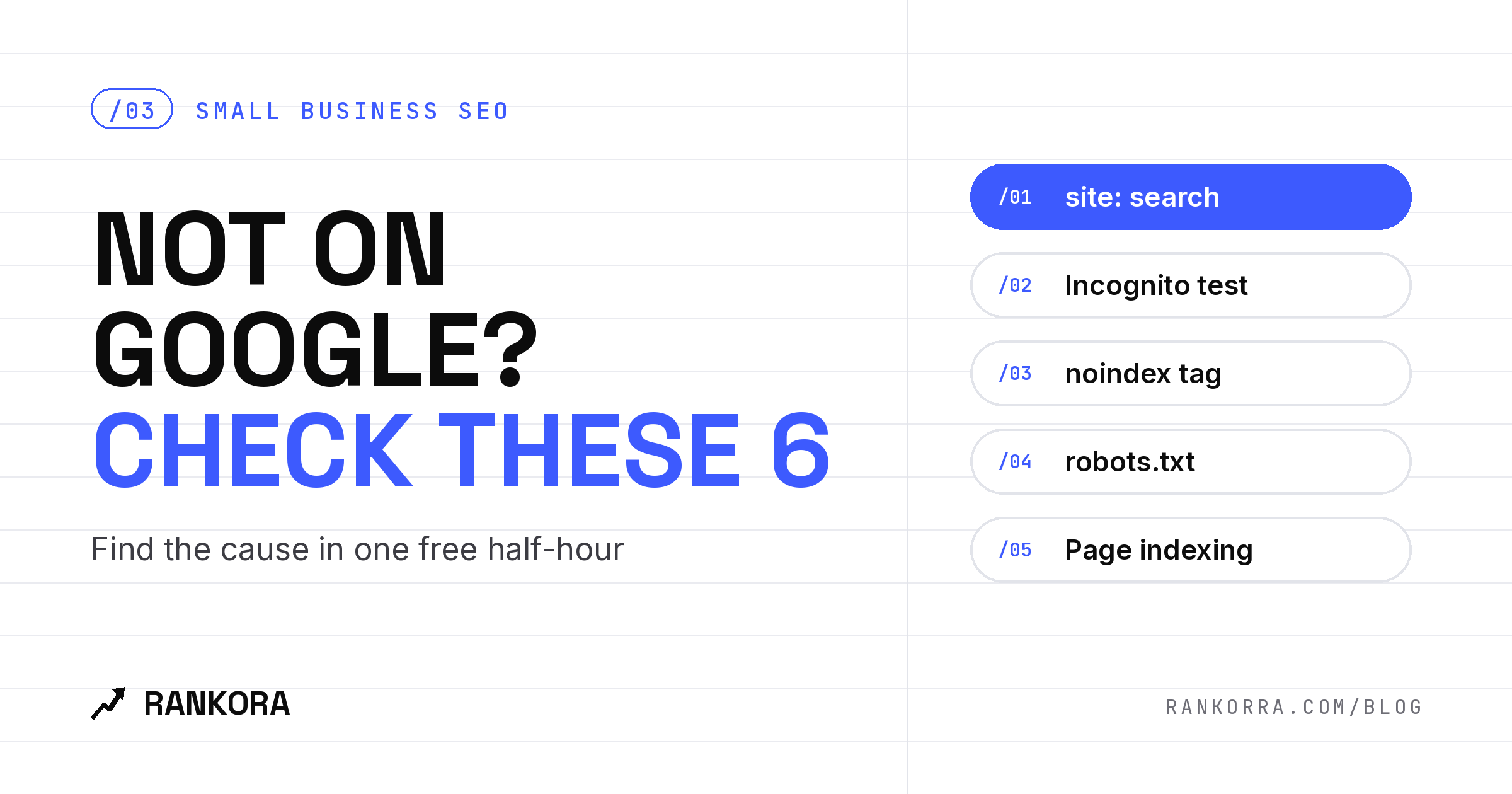
If your website is not showing on Google, the cause is usually one of six things, and you can find which one in about 30 minutes for free. Search site:yourdomain.com, open the site in an incognito window, look for a noindex tag, read your robots.txt file, then check the Page indexing report and URL Inspection tool in Google Search Console.
Run the checks in that order. The first four need nothing but a browser. The last two need a free Search Console account, which every small business site should have anyway.
Everything below comes from Google's own documentation, checked on 25 November 2026. Google says in its guide to getting your site on Google that "it can take a few weeks for Google to notice a new site," and that small sites sometimes simply get missed. So if your site launched last Tuesday, patience is part of the fix. If it launched three months ago, something is probably blocking it.
Website not showing on Google: not indexed, or not ranking?
Answer this first, because the two problems have completely different fixes. A page that isn't indexed doesn't exist as far as Google Search is concerned. A page that is indexed but sits on page five has a ranking problem, and none of the checks below will help it.
Here's the quick test. Search your exact business name in Google. If your homepage appears, Google has indexed you and the real job is ranking for the phrases customers type. If nothing appears for your own name, keep reading: that's an indexing problem, and it's usually fixable in an afternoon.
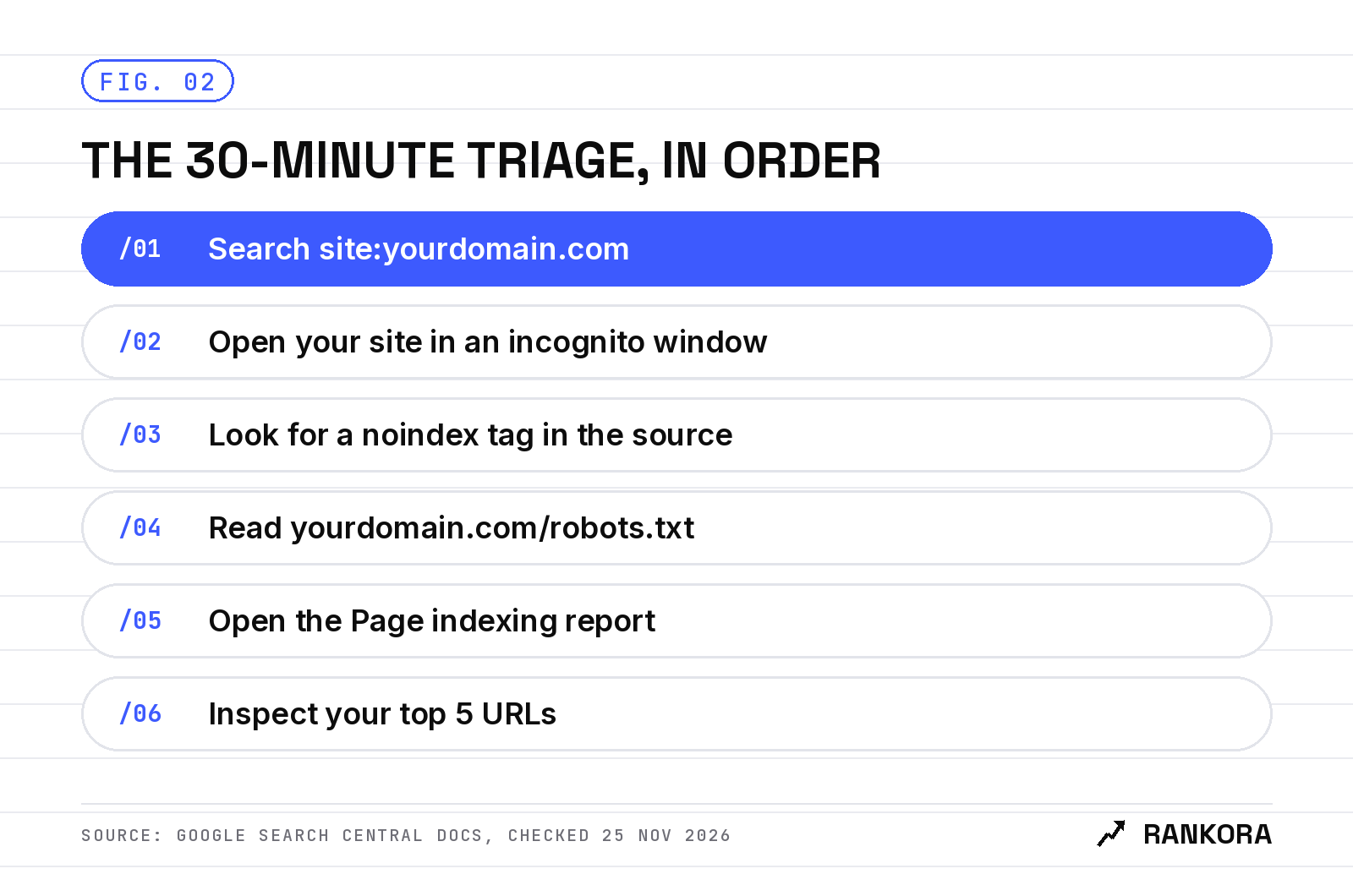
Check 1: Search site:yourdomain.com
Type site:yourdomain.com into Google, with your real domain and no space after the colon. This shows pages Google has in its index for that domain. Zero results on a site that's been live for more than a few weeks is your red flag.
Treat the number as a rough signal, never an audit. Google's own guide warns that the site: operator "doesn't necessarily return all the URLs that are indexed." Use it to answer one question: is Google showing any of my pages, and are the important ones (home, services, contact) there?
Check 2: Open your site in an incognito window
Google lists crawling errors, "often from a login page or a block on Google," as a reason sites don't appear, and its fix is plain: check that your site loads in an incognito window. Incognito shows you what a logged-out visitor, and roughly what Googlebot, gets.
Small business sites fail this check more often than you'd think. The usual culprits:
- A "coming soon" or maintenance page your web designer switched on at launch and never switched off.
- A password-protected staging setting left active on the live domain.
- A homepage that's a single image or video with no readable text. Google's guide tells you to use real text on the page, since content locked in images or video is harder for it to understand.
Check 3: Look for a noindex tag
A noindex tag is a line of code that tells search engines not to put a page in their index. It looks like this: <meta name="robots" content="noindex">. Open your homepage, press Ctrl+U (Cmd+Option+U on a Mac) to view the source, then search the page for "noindex". If it's there on a page you want customers to find, that's your answer.
On WordPress, the most common cause is one checkbox. Under Settings, then Reading, there's an option labelled "Discourage search engines from indexing this site." According to the WordPress documentation for the Reading screen, ticking it adds a noindex, nofollow robots meta tag to your site's head (since version 5.3). Developers tick it while building the site. Some forget to untick it at launch.
Untick it, save, and move on to check 4.
Check 4: Read your robots.txt file
Go to yourdomain.com/robots.txt in your browser. If you see Disallow: / under User-agent: * or User-agent: Googlebot, you're telling Google not to crawl anything on the site. Delete that line unless you have a specific reason for it.
Two details from Google's robots.txt introduction trip up small business owners. First, robots.txt "is not a mechanism for keeping a web page out of Google": a blocked URL can still appear in results, just without a description. Second, the two controls fight each other. Google's noindex documentation says that for noindex to work, the page "must not be blocked by a robots.txt file," because a crawler that can't fetch the page never sees the tag.
The practical rule for a 10-page site: robots.txt controls crawling, noindex controls indexing. Most small business sites need neither on their public pages.
Check 5: Read the Page indexing report in Search Console
If checks 1 to 4 come back clean, open Google Search Console. If you haven't set it up, our free and paid small business tool stack walks through it alongside the other free tools worth having. Once your site is verified, open Indexing, then Pages.
The Page indexing report lists every URL Google knows about and the reason each one is or isn't indexed. Read the reasons, not the totals. Google's Page indexing report help page is explicit that "you should not expect all URLs on your site to be indexed, only the canonical pages." A few excluded URLs (old redirects, tag pages, duplicates) is normal. Your service pages sitting in the excluded list is not.
These are the statuses that matter most on a small site, with Google's definition and the fix:
| Status in the report | What Google says it means | What to do |
|---|---|---|
| URL marked "noindex" | Google found a noindex directive and did not index the page | Remove the tag (see check 3) if the page should rank |
| URL blocked by robots.txt | Google did not crawl the page because of a robots.txt rule | Remove the Disallow rule for that path (check 4) |
| Discovered, currently not indexed | Google found the page but has not crawled it yet | Link to it from your homepage or menu, then wait |
| Crawled, currently not indexed | Google crawled it and chose not to index it; Google calls this common | Make the page more useful, or merge it into a stronger page |
| Duplicate without user-selected canonical | Google picked a different page as the canonical version | Merge near-identical pages or set a canonical tag |
| Not found (404) | The page returned a 404 when Google requested it | Fix the internal link or redirect the old URL |
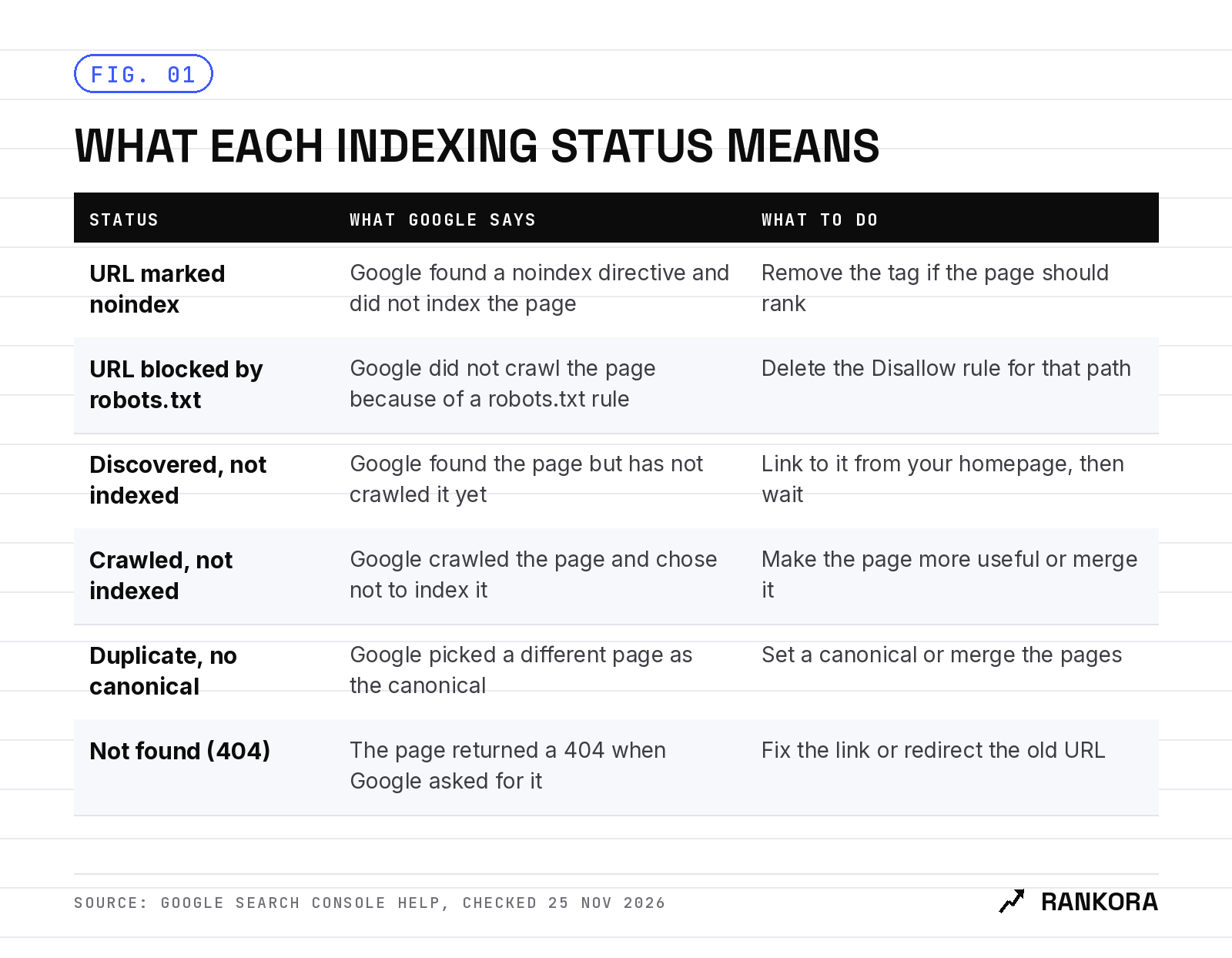
"Crawled, currently not indexed" deserves a closer look on small sites. It often hits thin pages: five near-identical "plumber in [suburb]" pages, a services page with two sentences, or a blog post copied from a supplier. Google fetched them and decided they added nothing. Rewriting one strong page usually beats keeping five weak ones. While you're in there, check that each page has a distinct title; our guide to fixing title tags on a 10-page site covers that in an afternoon.
Check 6: Inspect your top 5 URLs and request indexing
Paste your five most important URLs (usually home, your main service pages and contact) into the search bar at the top of Search Console. The URL Inspection tool tells you whether each one is indexed, which canonical Google chose, and whether anything blocks it. Click "Test live URL" to fetch the current version, then "Request indexing" if the page is new or just fixed.
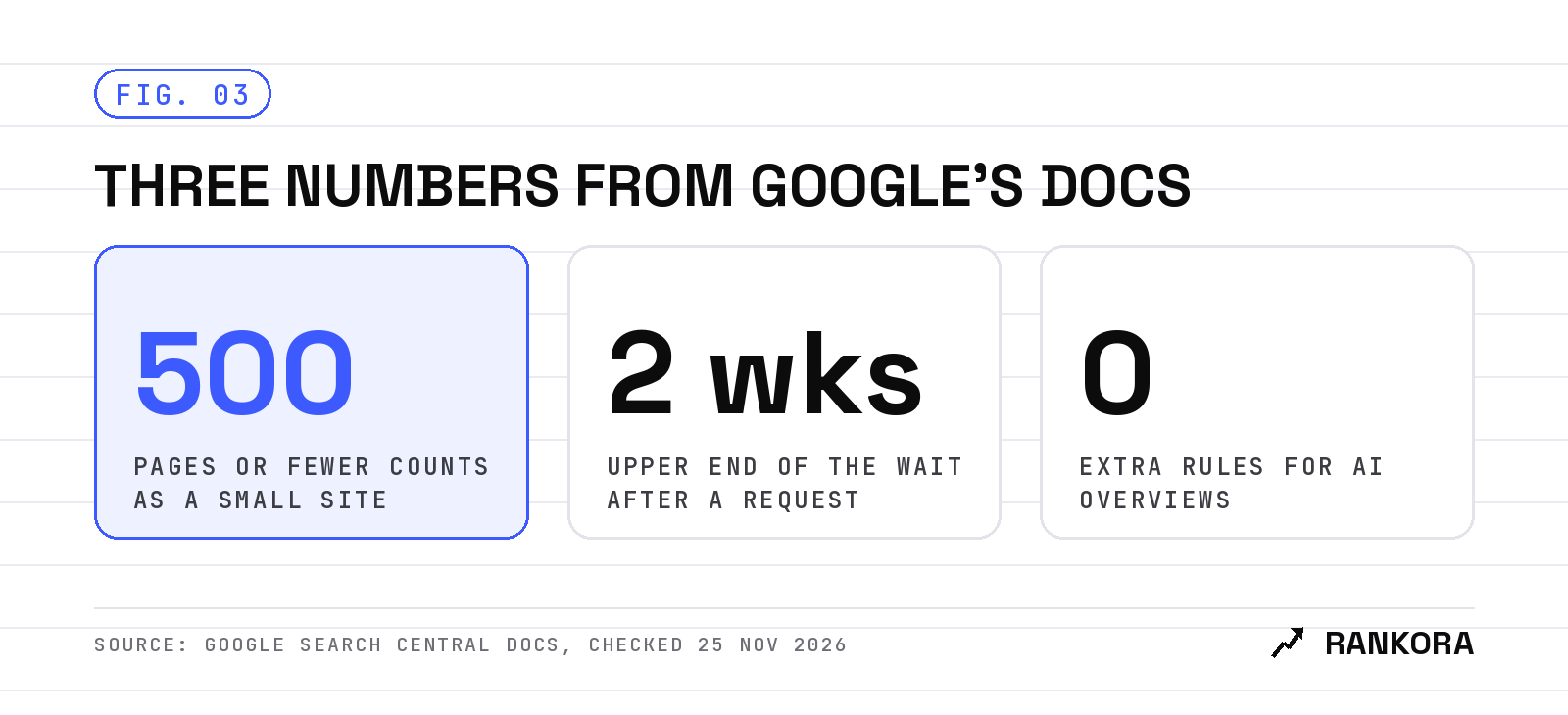
Set your expectations from Google's URL Inspection help page: indexing "can take up to a week or two," requesting it "does not guarantee that the page will appear," and there's a daily limit on requests. Request your top pages once. Hammering the button every morning does nothing.
Should you also submit a sitemap? Google's sitemaps overview says a site of "about 500 pages or fewer" might not need one, but lists "your site is new and has few external links to it" as a case where a sitemap helps. Most small business sites are both: tiny and new. Many site builders and SEO plugins create one for you (try yourdomain.com/sitemap.xml), so submitting it under Indexing, then Sitemaps, takes a minute.
What if all six checks pass?
Then nothing is blocking Google, and the problem is discovery or value. Google's get-on-google guide names the remaining causes plainly: other sites don't link to yours, the site is new, or Google simply missed it, "which can happen with small sites."
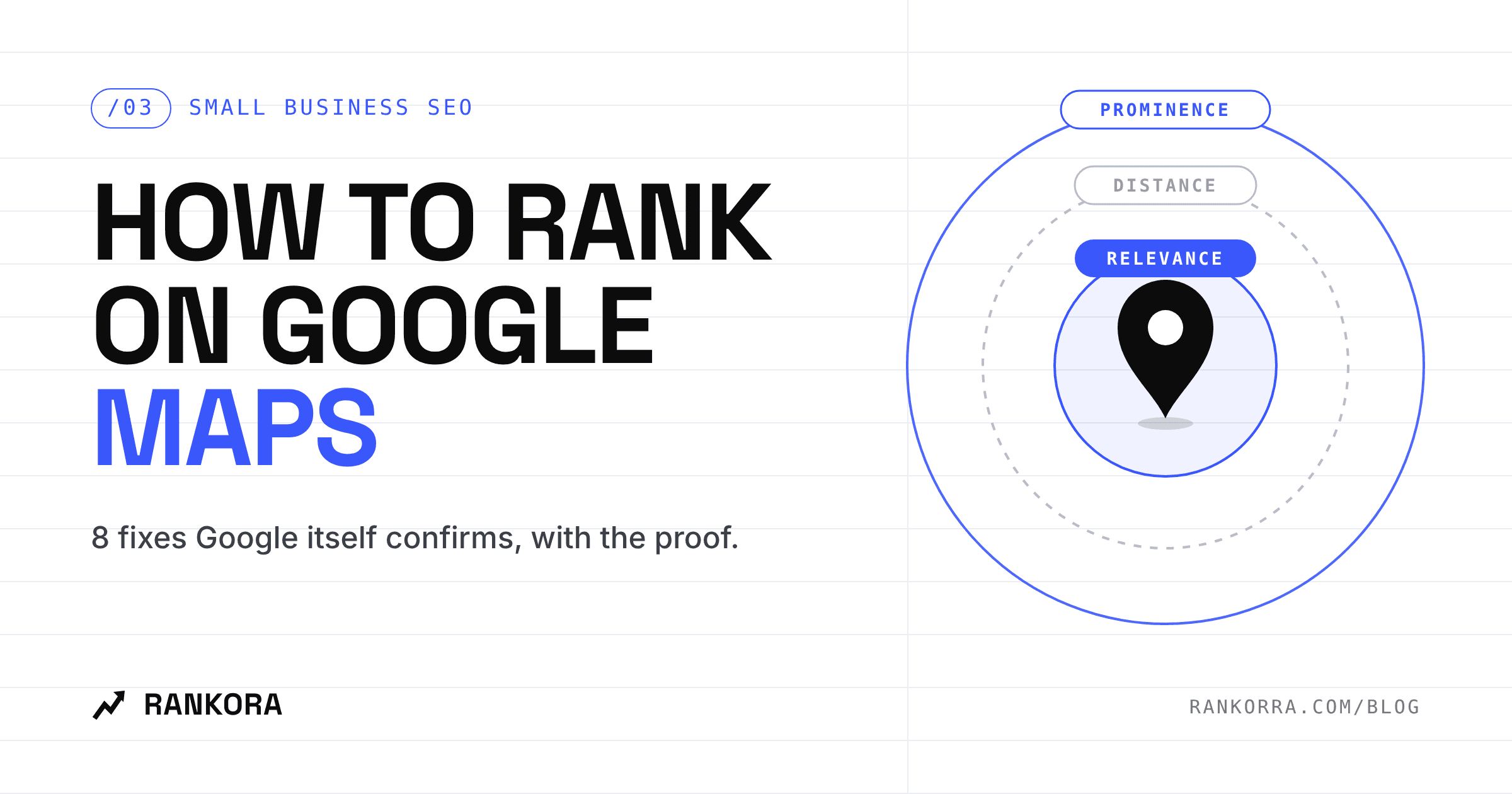
For a local business, the fastest route to discovery is usually your Google Business Profile with your website link on it, plus a handful of genuine links from places that already know you: your trade association, suppliers, local chamber or a partner business. Our walkthrough of the Google Maps fixes Google itself confirms covers the profile side. Don't buy links; Google's guide says to get them naturally.
Why indexing now decides your AI visibility too
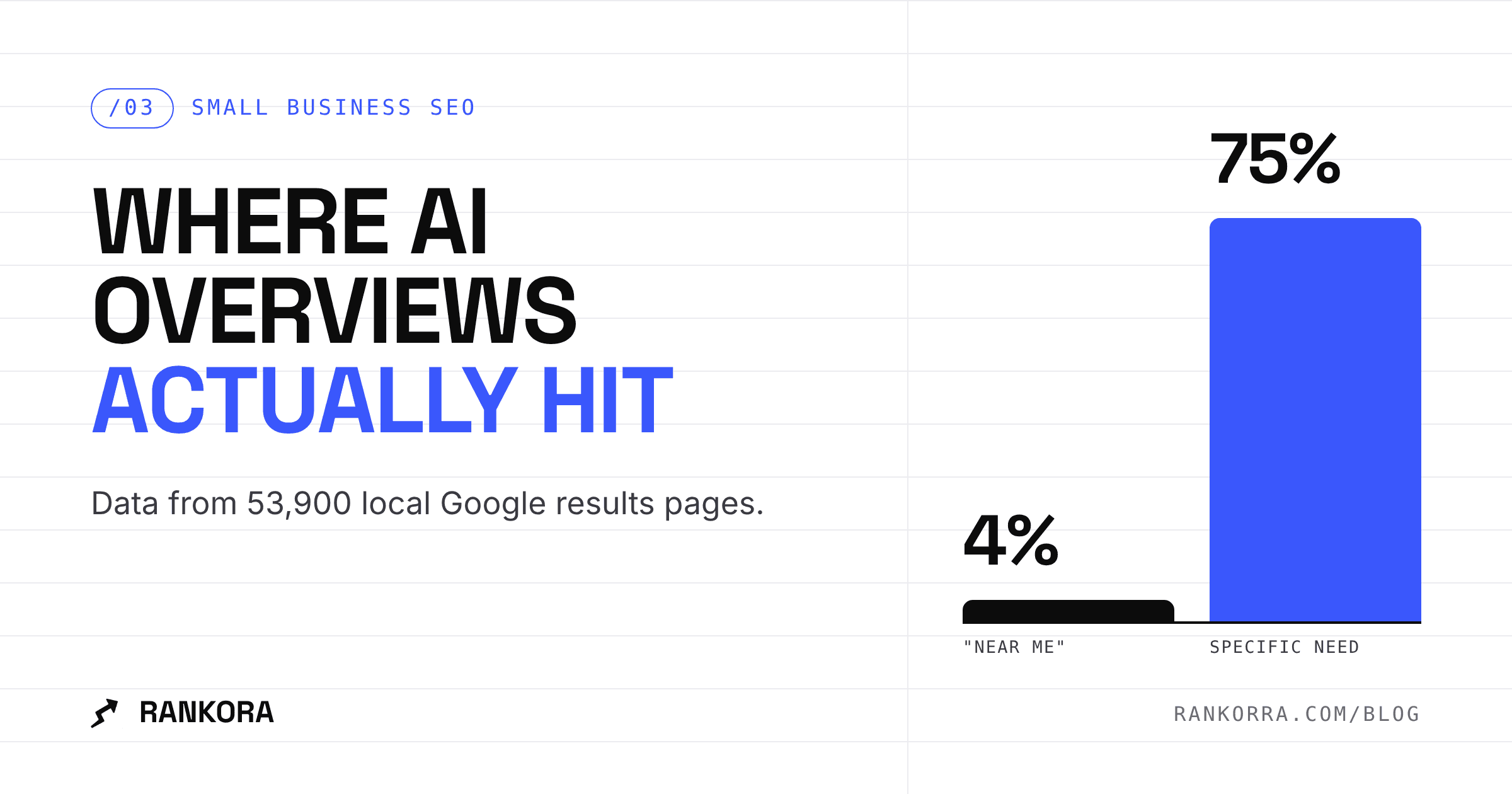
Indexing is also the entry ticket for AI Overviews and AI Mode. Google's page on AI features and your website says a page must be "indexed and eligible to be shown in Google Search with a snippet" to appear as a supporting link in AI Overviews or AI Mode, and that "there are no additional technical requirements."
Flip that around. An unindexed page has zero chance of being linked in an AI Overview, however good it is. Fix indexing first, then measure whether AI answers mention you. That's what AI visibility tracking across ChatGPT, Gemini and Perplexity is for.
What to do this afternoon
- Search your business name and
site:yourdomain.com. Write down which of your key pages appear. - Open the site in incognito, view the source, search for "noindex", and read
/robots.txt. Fix anything that blocks the whole site. - Verify the site in Search Console, open the Page indexing report and read the reason next to every page you care about.
- Inspect your top five URLs, request indexing once for any that were blocked, and submit your sitemap.
- Book a reminder for two weeks from today to recheck the report. If you'd rather scan every page for noindex tags, redirects and broken links in one pass, a site crawler that maps every page does it faster than checking by hand.
FAQ
How long does it take for a new website to show up on Google?
Google says it can take a few weeks for it to notice a new site. After you request indexing for a specific URL in Search Console, Google says indexing can take up to a week or two, and a request doesn't guarantee the page gets indexed. If a site has been live for months with zero pages indexed, something is likely blocking it, so run the six checks.
Why is my website not showing on Google when I search my business name?
Usually because the site isn't indexed at all. The most common causes on small sites are a leftover noindex tag (often the WordPress "Discourage search engines" box), a Disallow: / line in robots.txt, a password or "coming soon" page, or a brand-new site Google hasn't found yet. If the site is indexed but a directory listing outranks it, that's a ranking issue instead.
Does submitting my site to Google Search Console make it rank?
No. Search Console helps Google find and understand your pages and shows you errors that prevent indexing. Being indexed makes a page eligible to appear; where it ranks still depends on how well it answers the search. Treat Search Console as your diagnostic panel, not a ranking button.
Do I need a sitemap for a small business website?
Not strictly. Google says sites of about 500 pages or fewer might not need one if they're well linked internally. It also says a sitemap helps when a site is new and has few external links, which describes most small business sites. If your platform already creates one, submitting it costs a minute.
Can a page that isn't indexed appear in AI Overviews?
No. Google says a page must be indexed and eligible to show with a snippet to appear as a supporting link in AI Overviews or AI Mode, with no extra technical requirements. That makes indexing the first step for Google's AI answers as well as its regular results.
The one thing that matters most
Read the reason, not the count. Every indexing problem on a small site comes with a label in Search Console, and the label tells you the fix. Most of the time it's a setting someone forgot, and you can undo it before lunch. If you want those checks running on a schedule instead of from memory, a technical SEO audit with one prioritised fix list will flag crawlability issues across the whole site.
Tagged